
Android 4.0 Ice Cream Sandwich introduced a face detection feature in its operating system. The Nexus 7 comes with Android 4.1 Jelly Bean (upgradable to Android 4.2.1) out of the box, therefore the tablet can take advantage of this feature. Today, I will teach you how to setup and use the face unlock feature on the Nexus 7.
How to setup the face unlock feature on the Nexus 7 :
- Turn on your Nexus 7 tablet.
- Navigate to settings.
- Scroll down until you see the “personal” category.
- Tap security.
- Find the “screen security” category and select screen lock.
- Select face unlock.
- Tap “set it up”.
- Look at the tablet’s front-facing camera and let it capture your face.
Important information you should take note at before setting up and/or using the face unlock feature
- It is possible for someone to unlock your device Via face unlock if they look similar to you.
- The Nexus 7 keeps the data that is used to identify your face private.
- Face Unlock is not as secure as a password, PIN or pattern.
- For the best results when setting the feature up and capturing your face, you should find an indoor spot and hold the tablet at eye level.
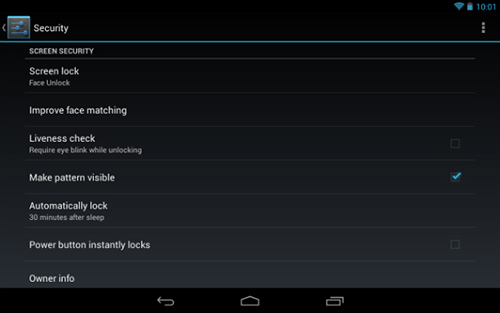
After testing the feature out, the tablet recognizes my face without issue. If someone else tries to unlock the tablet Via the Face Unlock feature or the tablet could not find a face, it will fail and eventually bring up the a touchscreen number-pad to enter a PIN. While setting up the Face Unlock feature and successfully capturing your face, you will be required to enter a PIN to use if someone else wishes to access your tablet or if your face somehow does not unlock the screen.
Before you disable the Face Unlock feature, you are required to enter the PIN that you entered when setting up the Face Unlock feature. After you enter the PIN, you can choose to use an alternative lock screen on your Nexus 7; slide, pattern, PIN or password. Do note, you will be required to re-setup the Face Unlock feature if you disable it by enabling an alternative screen lock option.
