
Google Music is a relatively new addition to the Play store, giving you the chance to buy music direct from Google and download it to your device. It’s a cloud-based service that gives you access to your purchases on any Android device, but is not just limited to new songs you’re buying. All the music already stored on your phone is also available in the Google Music app, while you can also download the Google Play Music Manager from music.google.com which will automatically scan the music stored on your PC or Mac (iTunes data) and give you access to 20,000 tracks in your cloud storage for free. There’s a built-in audio player for every song in your collection, and the app does a pretty good job of displaying album art – something which many of its competitors fail to achieve. In this mini tutorial we’ll guide you through Google Music, and show you how you can be listening to your song collection in a matter of minutes.
-
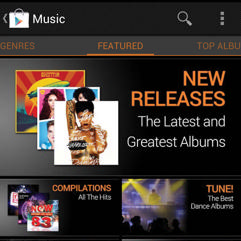
Get used to the storefront
The new Google Music portion of the Play Store is laid out in the same way as both the Books and Movies sections. Scroll left and right at the top of the app to see the various sections, including top selling singles, best albums, and best alternative music.
-
Select an album
After finding an album that takes your fancy, select it from the list to be presented with this screen. Each album is broken down by individual songs and the price for each individual track. You are also given the option to buy the whole album.
-
Create a wishlist
When looking at a specific album or song page, press the star button at the top of the screen to add the item to your My Wishlist page. This will act as a bookmarking page where you can keep tabs of content you’re interested in.
-
Sync your music
The second option available to you when you open up the Google Music app (seperate from the Play Store) is to sync your entire library of music that’s stored on your phone. Once uploaded, you’ll have access to it all in one place, alongside your purchased music through Google Music.
-
Using the player
With all your music uploaded, you’ll be able to fully explore the Google Music player. As with most audio players, you can search for your music via the Album, Artist and Song tabs that can be scrolled through at the top of the screen.
Comparing Google Music Vs. iTunes Vs. Amazon Music Store
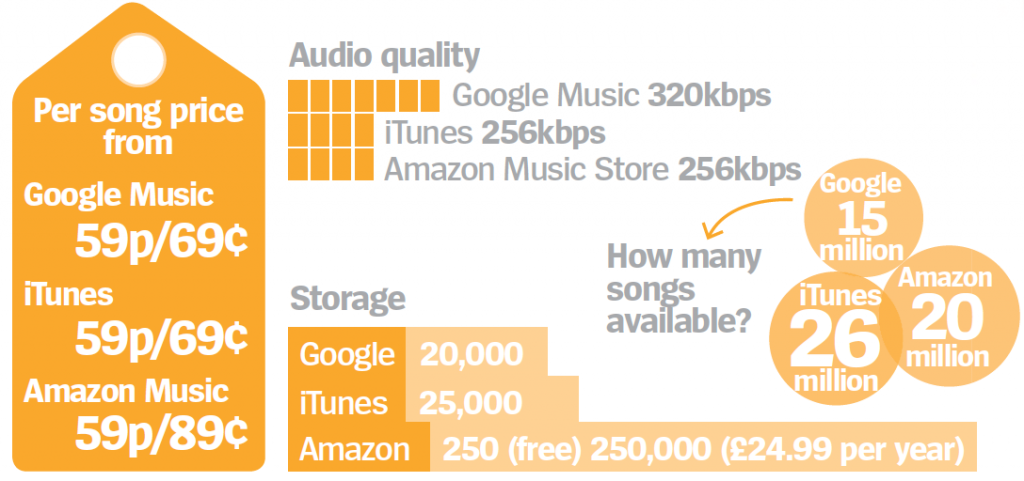
The Google Music cloud streaming service is potentially revolutionary in how it will change the way you listen to music. It scans your iTunes or other music folder on your desktop computer, and instead of uploading tracks, it finds matches in the Google Music database, and automatically adds up to 20,000 of them to your cloud account. It all happens via your Google account, so make sure you log in with the same one on the desktop that you’re using on your phone or tablet. As a cloud-based product you will need to have access to an internet connection in order to play your songs. It will cache some tracks, but you will need to make songs explicitly available for offline use if you are heading somewhere where you know you will be offline for some time.
